Badge Printing (BPS) is the platform that prints physical badges. This software has to be displayed in Firefox browser and it needs two peripherals connected to the computer:
QR scanner.
Badge printer.
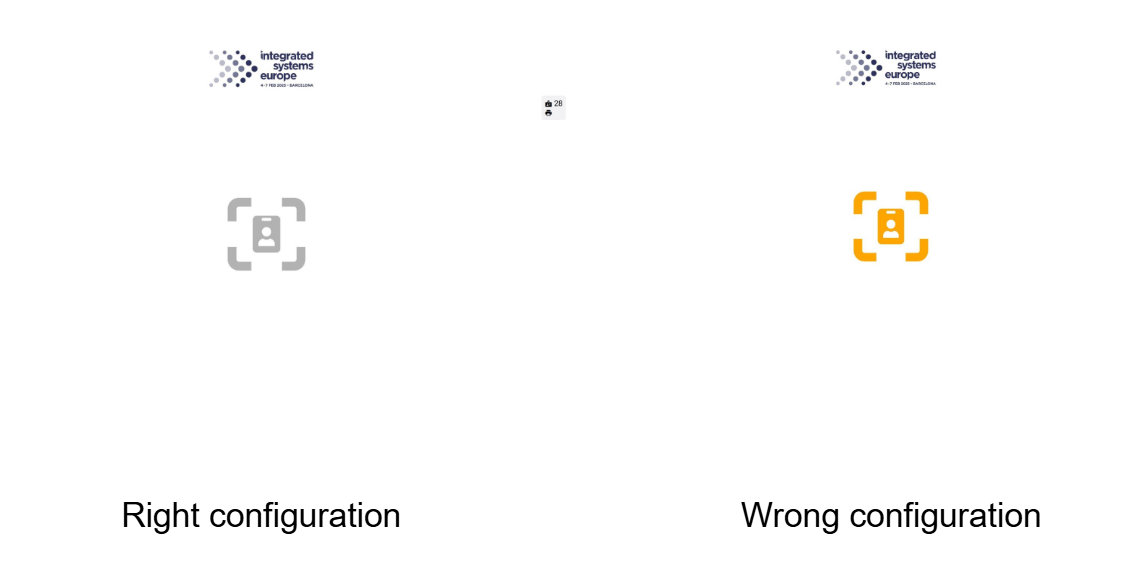
Badge Printing app should display the following screen ready for scanning:
If the central icon appears in orange, please notify a technician to review the platform’s configuration.
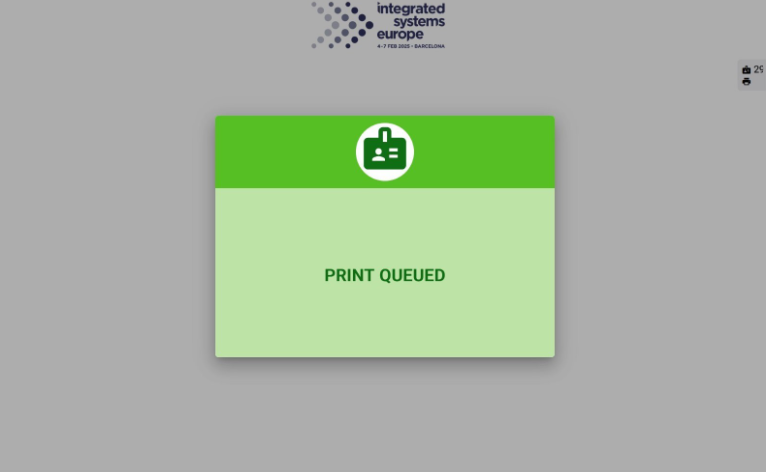
When scanning a QR code from ISE24’s app (Digital Voucher), three different responses may appear.
Success: User is recognised and the badge is going to be printed.
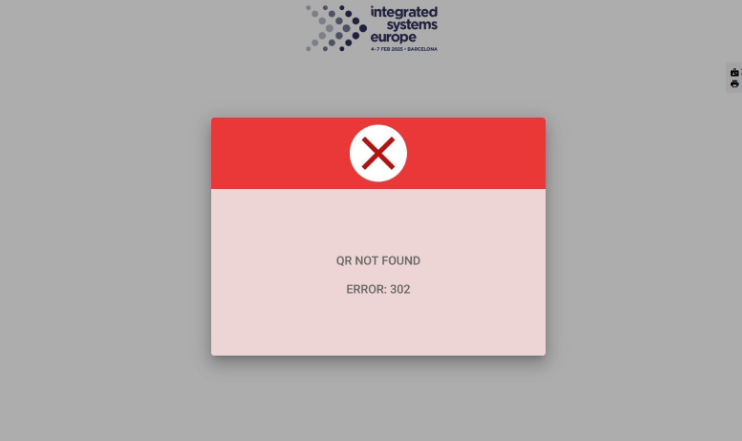
2. Error: There is a misconfiguration in user registration. Please consult the troubleshooting guide for the error code.
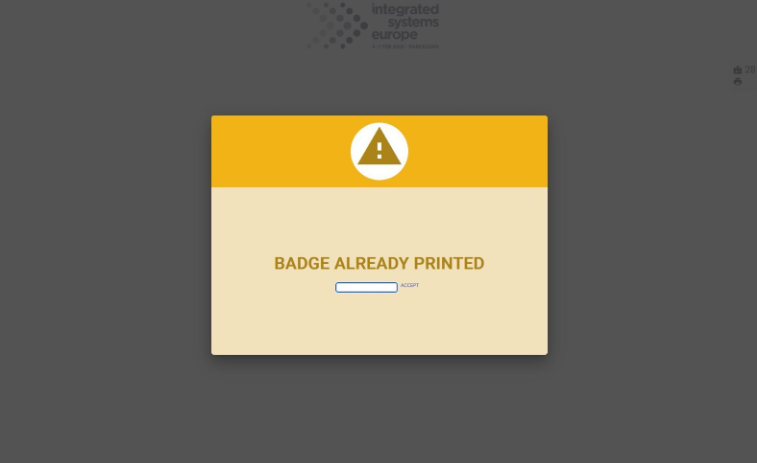
3. Print limit reached. The visitor has exceeded the printing limit. Please notify the supervisor to unlock the print limit.
Troubleshooting
The code and the description of the message can help us to identify what has to be fixed in the user registration.
Code 301, disabled ticket. Search this user at the Registration Backoffice and check its ticket. If this ticket is disabled/canceled, a new one should be acquired.
Code 302, qr not found. Re-try the scan of the QR. If the problem persists, search this user at the Registration Backoffice and try to get the QR from there (and scan again).